If your Jeep Grand Cherokee Uconnect system isn’t working right, it can be frustrating. Sometimes the screen freezes, the Bluetooth won’t connect, or the navigation lags. You might think you need a dealership visit, but many Uconnect problems can be fixed at home with a reset. This guide will show you how to reset your system safely, explain when a reset is needed, and help you avoid common mistakes. Even if you don’t know much about car tech, you’ll find easy steps and clear advice here.
Understanding The Uconnect System
The Uconnect system is the touchscreen and software that controls navigation, music, calls, and even some vehicle settings in your Jeep Grand Cherokee. Over the years, Uconnect has changed. Older models use simpler versions, while newer ones offer large screens and more features. Knowing your Uconnect version helps you reset it the right way.
A basic reset often solves issues like:
- Frozen screen
- Unresponsive buttons
- Bluetooth problems
- Navigation errors
- Audio glitches
However, a reset will not fix hardware issues like a cracked screen or a dead battery. It’s important to know the difference so you don’t waste time.
Common Reasons For Resetting Uconnect
Drivers reset their Uconnect system for many reasons. Here are some of the most common:
- System Freezing: The screen stops responding to touch or buttons.
- Connectivity Issues: Bluetooth won’t pair, or the phone disconnects.
- Navigation Errors: The map does not update, or the GPS loses your location.
- Audio Malfunctions: No sound, poor volume control, or the radio won’t switch.
- Update Problems: After a software update, the system acts strangely.
A non-obvious insight: Many drivers don’t realize that small glitches—like slow response or laggy menus—often signal the system needs a reset before things get worse.
Preparing For A Uconnect Reset
Before you reset, take a few steps to protect your data and avoid mistakes.
- Note your settings: Some personalizations (radio presets, paired devices, navigation favorites) may be lost after a reset. Write them down or take photos.
- Check your Uconnect version: The process can be slightly different for 2014–2021 models and 2022+ models.
- Keep your car in Park: Safety first. Never reset while driving.
- Leave the engine running: Some steps require the vehicle to be on to power the system.
- Have your phone handy: For reconnecting Bluetooth after the reset.
A common beginner mistake is trying to reset with the car off, which won’t work and can confuse the system further.
How To Soft Reset Jeep Grand Cherokee Uconnect
A soft reset is the safest and easiest way to restart the Uconnect system. It does not erase saved data like navigation addresses or radio presets. Use this method first if your system is acting up.
Steps For Most Jeep Grand Cherokee Models (2014–2021)
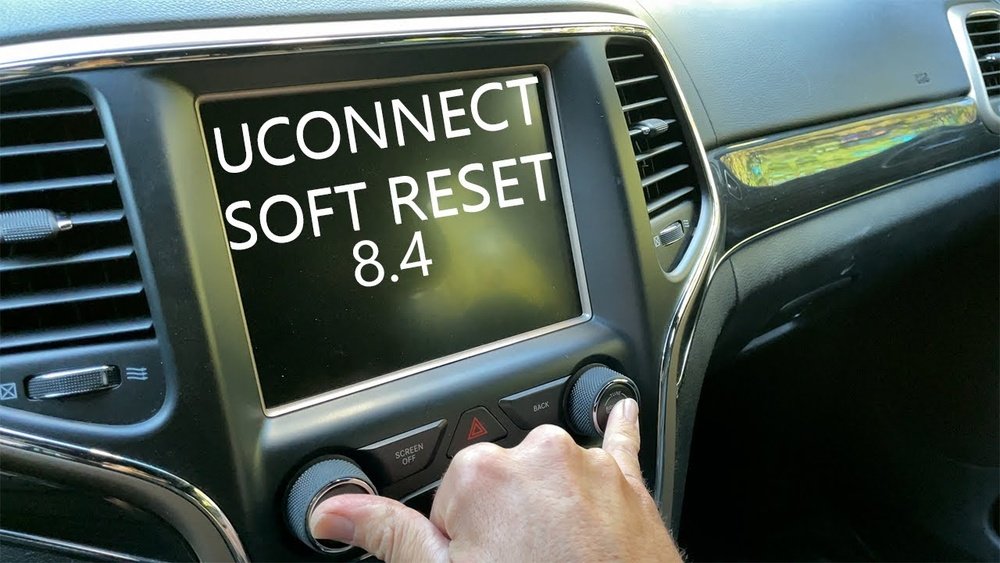
- Turn on the ignition: Put your car in Park and turn the key or push Start. The Uconnect screen must be on.
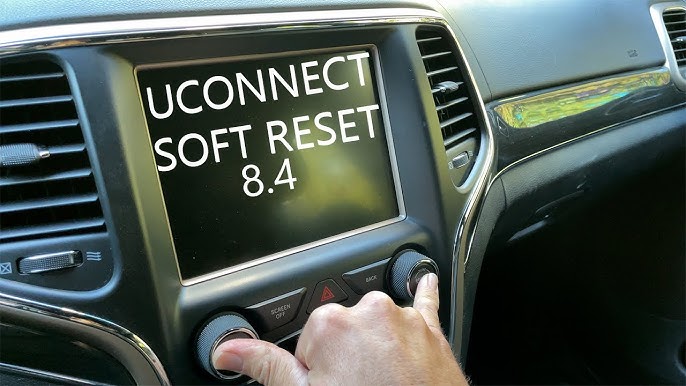
- Press and hold the volume and tuner knobs together for about 10–20 seconds.
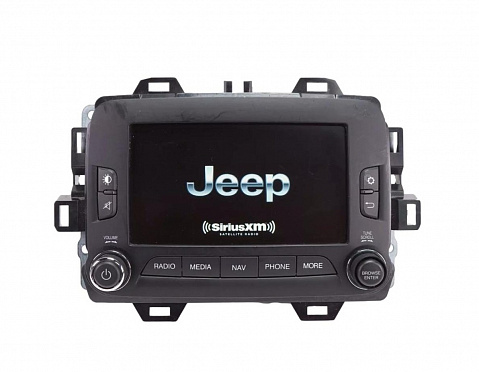
- The screen will go black, then show the Jeep logo as it restarts.
- Let the system fully reboot. This takes 30–60 seconds.
- Test the system: Try Bluetooth, navigation, and audio to see if the problem is fixed.
Steps For Newer Models (2022+ With Uconnect 5)
- With the car in Park and engine running, find the Uconnect settings menu.
- Scroll to “System” and select “Restart.”
- Confirm the restart when prompted.
- The system will power down and restart automatically.
If your model does not have a “Restart” option, the button method above usually works.
What To Expect After A Soft Reset
Most of your settings, phone pairings, and radio presets will remain. The system should feel faster, and small glitches should be gone. If not, a deeper reset may be needed.
Credit: www.upfix.com
How To Hard Reset (factory Reset) Jeep Grand Cherokee Uconnect
A hard reset, or factory reset, erases all user data and returns the system to its original settings. Use this if you plan to sell your car, after a major update, or if problems do not go away with a soft reset.
Steps For Hard Reset
- Turn on the ignition and keep the car in Park.
- Tap the “Settings” icon on the Uconnect screen.
- Scroll down to “System Information” or “Reset.”
- Choose “Restore Factory Defaults” or “Factory Reset.”
- Confirm your choice. The system will warn you that all data will be erased.
- Wait for the process to finish. The screen may go black and show the Jeep logo as it restarts.
- Set up your language, time, and preferences again.
A hard reset cannot be undone. Make sure you have all important information saved before starting.
Data Lost During A Hard Reset
- Paired phones
- Navigation favorites
- Radio presets
- Custom backgrounds
- Saved Wi-Fi networks
When To Use A Hard Reset
- After selling or buying a used Jeep Grand Cherokee
- If you forget your Uconnect PIN or lock code
- When a software update fails and the system becomes unstable
A non-obvious insight: If you use Uconnect apps with a linked account (like SiriusXM Guardian), you may need to re-activate your account after a hard reset.
How To Reset Uconnect Bluetooth Only
Sometimes, only the Bluetooth function is acting up. Instead of resetting the full system, you can try just clearing Bluetooth connections.
- Go to the Uconnect “Phone” menu.
- Find “Paired Devices” or “Bluetooth Devices.”
- Select your phone from the list.
- Choose “Delete” or “Remove.”
- On your phone, forget the Uconnect system in Bluetooth settings.
- Restart your phone and the Uconnect system.
- Pair your phone again from scratch.
This often solves problems with calls not connecting or music not playing through Bluetooth.
Credit: www.reddit.com
How To Reset Uconnect Navigation Only
If your navigation is showing the wrong location or not updating, try this:
- Go to the “Navigation” menu.
- Look for “Reset Navigation” or “Clear Data” (not all versions have this).
- If available, select it and confirm.
- If not, a soft reset of the whole system usually helps.
Tip: Sometimes, simply updating the navigation maps solves the problem without a reset.
Troubleshooting Tips If Reset Does Not Work
If your Uconnect system still has problems after a reset, try these steps:
- Check for software updates: Go to the Uconnect website or ask your dealer about the latest version.
- Disconnect the car battery: In rare cases, removing the negative battery cable for 10–15 minutes can force a deeper reset. Only do this if you know how, or ask a mechanic.
- Check vehicle fuses: A blown fuse can cause system failures. The fuse box diagram is in your owner’s manual.
- Inspect for physical damage: Cracks, water, or extreme heat can damage the screen or computer.
If all else fails, professional help may be needed.
Credit: www.youtube.com
Comparison Of Soft Vs. Hard Reset
Here’s a quick look at the differences between a soft and hard reset for Uconnect:
| Feature | Soft Reset | Hard Reset |
|---|---|---|
| User Data | Kept | Erased |
| Radio Presets | Kept | Lost |
| Paired Phones | Kept | Lost |
| Use Case | Minor glitches | Major issues, selling car |
| Time Needed | 1 minute | 3–5 minutes |
Typical Uconnect Problems And Solutions
Understanding which reset to use can save time. Here’s a helpful summary:
| Problem | Reset Type | Extra Steps |
|---|---|---|
| Frozen Screen | Soft Reset | None |
| Bluetooth Not Working | Clear Bluetooth / Soft Reset | Forget device on phone |
| Navigation Issues | Soft Reset / Update Maps | Check GPS signal |
| System Slow | Soft Reset | Check storage space |
| After Major Update | Hard Reset | Backup settings |
How To Avoid Uconnect Problems
To keep your Uconnect system working smoothly:
- Update software regularly. Many glitches are fixed in new versions.
- Limit connected devices. Too many paired phones slow the system.
- Avoid extreme temperatures. Heat and cold can affect the touchscreen.
- Don’t overload storage. Delete old music or apps you don’t use.
- Use original USB cables for updates and connections.
A tip most drivers miss: If you notice new problems after adding a third-party accessory (like a dash cam or charger), try disconnecting it. Some accessories interfere with Uconnect.
When To Get Professional Help
While most resets can be done at home, seek help if:
- The screen stays black after a reset
- The system won’t turn on at all
- There are error messages you don’t understand
- You see “Service Uconnect” warnings
A certified Jeep dealer or service center can run advanced diagnostics. Sometimes, a deeper software re-flash is needed.
For more official info and troubleshooting, you can visit the Jeep Uconnect support page.
Frequently Asked Questions
How Often Should I Reset My Jeep Grand Cherokee Uconnect?
You do not need to reset Uconnect on a schedule. Only reset when you notice problems like freezing, lag, or connection issues. Regular resets are not required for maintenance.
Will Resetting Uconnect Delete My Navigation Maps?
A soft reset will not delete maps. A hard (factory) reset does not delete built-in maps but will remove saved addresses and favorites. Map updates must be done separately.
Can I Reset Uconnect While Driving?
No, it’s unsafe and not recommended. Always reset Uconnect with the car in Park and the engine running. Some reset options are locked while driving.
What If Uconnect Won’t Turn On After A Reset?
First, check your car battery and fuses. If the screen stays black, you may need a professional diagnosis. Sometimes, disconnecting the battery for 10–15 minutes helps.
Do I Need To Pay For Uconnect Updates?
Basic software updates are usually free through the dealer or Jeep’s website. Some features, like live traffic or Wi-Fi, may need a subscription.
Resetting your Jeep Grand Cherokee Uconnect is a practical way to fix many tech issues without a trip to the dealer. With the right steps, you can handle most glitches yourself and get back to enjoying your drive. If problems continue, don’t hesitate to ask for expert help—sometimes, a bigger fix is needed for peace of mind.